






The default settings Valorant launches with are not optimized for competitive play. Bad settings create input lag, poor visibility, and inconsistent aim that hold you back without you even realizing the cause. The fastest performance gains in Valorant do not come from mechanical skill or agent mastery. The gains come from spending 15 minutes dialing in the right sensitivity, graphics, crosshair, and audio settings before you queue for a single ranked match.
Pro players have already solved most of this. About half of all Valorant professionals use 800 DPI; the average pro eDPI sits between 280 and 350, and virtually every competitive player runs a small, static crosshair with zero movement or firing error enabled. The full guide below gives you a copy-ready competitive baseline across every settings category, with the reasoning behind each choice so you can tune from a position of understanding rather than guessing.
Mouse Sensitivity and eDPI

Image Credit : playvalorant.com
Sensitivity is the foundation. Every other setting matters less if your crosshair cannot land where your brain tells it to go.
What is eDPI?
eDPI (effective DPI) is your mouse DPI multiplied by your in-game sensitivity. The number standardizes aim speed across different hardware setups. Two players with the same eDPI will have the same turn speed regardless of whether one runs 400 DPI at 0.8 sens or 800 DPI at 0.4 sens.
The Competitive Range
Most Valorant pros in 2026 land between 240 and 400 eDPI, with the sweet spot clustered around 280 to 350. At 800 DPI (the most common base), that translates to an in-game sensitivity between 0.3 and 0.5.
Lower eDPI favors precise micro-adjustments and steady angle holding. Higher eDPI allows faster corner clearing and 180-degree flicks but punishes sloppy corrections. Neither extreme is wrong, but the tighter the eDPI range, the more repeatable your aim becomes under pressure.
How to Find Your Sensitivity
Start at 800 DPI and 0.35 in-game sensitivity (eDPI 280). Play five Deathmatch rounds without changing anything. If your crosshair consistently trails targets, bump the sensitivity up by 0.05. If you overshoot, drop it by 0.05. Once you can comfortably turn 180 degrees with a full mousepad swipe while still making precise micro-adjustments at range, lock the number and commit for at least two weeks. Muscle memory needs that long to develop.
Additional Mouse Settings
Polling rate: 1000Hz minimum. Most modern gaming mice support 1000Hz, which sends position updates every 1ms. Some newer models offer 4000Hz or higher with diminishing returns.
Mouse acceleration: always off. Open Windows Settings, find Additional mouse settings under Mouse, and uncheck "Enhance pointer precision." Acceleration breaks 1:1 movement and destroys muscle memory. Also confirm acceleration is off inside Valorant's settings menu.
Scoped sensitivity: keep at 1.0. Matching scoped and hip-fire sensitivity preserves muscle memory across weapons, especially when switching to the Operator or Marshal.
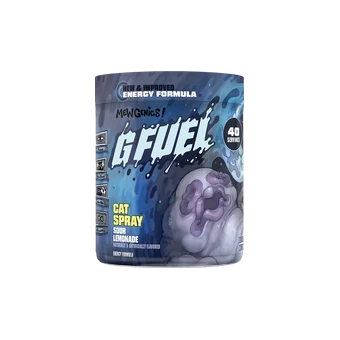
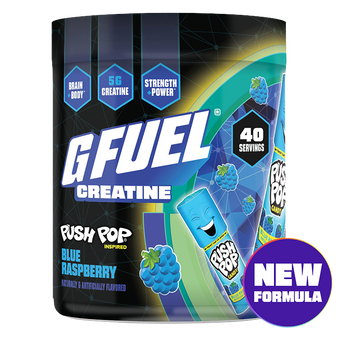
A 40-serving Energy Formula tub keeps reaction time sharp through the Deathmatch warm-ups and ranked sessions where these settings actually earn their keep.
Crosshair Settings

Image Credit : playvalorant.com
The crosshair is the one visual element you stare at during every single duel. A poorly configured crosshair hides targets, adds visual noise, and gives inaccurate feedback during sprays.
The Competitive Standard
In 2026, the overwhelming pro consensus is a small, static crosshair with movement error and firing error both turned off. A static crosshair keeps your aim point predictable regardless of movement state, and disabling error expansion removes visual clutter during combat.
Recommended Starting Values
Color: cyan or white (high contrast on every map; avoid red or pink, which blend with blood effects).
- Show inner lines: on.
- Inner line length: 3 to 5 pixels.
- Inner line thickness: 1 to 2 pixels.
- Inner line offset (gap): 1 to 3 pixels.
- Center dot: personal preference (on for tapping, off for spray-transfer).
- Movement error: off.
- Firing error: off.
- Outlines: on if the crosshair disappears against bright backgrounds. Outline opacity at 0.5 to 1.0.
Importing Pro Crosshairs
Valorant supports crosshair profile codes. Go to Settings, Crosshair, Import Profile Code, and paste any published pro code to test a setup instantly. Sites like setup.gg and ProSettings publish working codes for nearly every VCT pro. Try a code, play 200 rounds without changing it, and only adjust if a specific problem emerges (too large at long range, disappears on bright maps). Our guide on improving aim in FPS games covers the mechanical fundamentals behind crosshair placement.
Graphics and Video Settings

Image Credit : playvalorant.com
Competitive Valorant graphics settings prioritize frame rate and visual clarity over eye candy. Pretty visuals mean nothing if they cost you frames, add input delay, or hide enemy models behind foliage and bloom effects.
Display Settings
Display mode: Fullscreen (not windowed or borderless). Fullscreen gives the game exclusive GPU access, reducing input lag.
Resolution: your monitor's native resolution (typically 1920x1080). Do not stretch or downscale unless you have a specific reason and understand the trade-offs.
Refresh rate: set to your monitor's maximum. 144Hz is the competitive minimum in 2026. 240Hz and above is increasingly common at higher ranks.
Graphics Quality
Set Material, Texture, Detail, and UI Quality to Low. Turning everything to Low removes visual clutter like foliage, detailed shadows, and particle effects that obscure enemy models during fights. A clean image beats a pretty one every time in ranked.
Bloom: off. Bloom washes out bright areas and can obscure enemies during ability usage.
Distortion: off. Distortion effects from abilities can make fights harder to read.
Anti-aliasing: MSAA 2x or off. Higher anti-aliasing settings reduce visual jaggedness but cost frames.
VSync: always off. VSync eliminates screen tearing but introduces significant input lag by forcing your GPU to wait for the monitor's refresh cycle. The trade-off is never worth it in competitive play.
NVIDIA Reflex
If you have an NVIDIA GPU, enable NVIDIA Reflex and set it to On + Boost. Reflex reduces system latency by aligning GPU render timing with your display, which is one of the most impactful single settings changes for competitive responsiveness.
Multithreaded Rendering
Set to On. Multithreaded rendering distributes the game's workload across multiple CPU cores, improving frame rate stability during action-heavy moments. Turning off Valorant's visual effects and protecting your eyes during long sessions both contribute to sharper competitive performance.
Audio Settings
Sound is one of the most undervalued competitive advantages in Valorant. Footsteps, ability cues, reload sounds, and Spike beeps all provide positional information that directly affects round outcomes.
HRTF (Head-Related Transfer Function)
Set HRTF to on. HRTF is Valorant's built-in 3D spatial audio system. When enabled, it dramatically improves your ability to pinpoint the direction and distance of sounds.
Critical note: disable any third-party 3D audio processing (Dolby Atmos, DTS:X, Windows Sonic, virtual surround on your headset). External spatial audio conflicts with HRTF and makes positional audio worse, not better.
Volume Settings
Sound effects: 100%. Footsteps and gunfire need to be as loud and clear as possible.
Voice-over (agent callouts): 50%. Useful for information but should not overpower gameplay audio.
Music: 0% to 10%. Background music provides no competitive value and masks important sounds.
Voice chat: adjust to a comfortable level where teammates are audible without drowning out footstep audio. Push-to-talk is recommended over open mic.
Speaker Configuration
Set to Stereo, even if you own surround-sound headphones. HRTF works best with a stereo signal and handles spatial positioning internally.
Keybind Recommendations

Image Credit : playvalorant.com
Default keybinds are functional but not optimized for speed. A few adjustments improve ability usage and communication.
Bind "Walk" (Shift by default) to a side mouse button if your mouse has one. Walking is used constantly in Valorant, and a thumb button frees your left hand for strafing.
Assign your most-used utility abilities to accessible keys like C and Q. Abilities you use every round (smokes, flashes) should be within reach without moving your fingers off WASD.
Minimap: set to rotate and keep player-centered. A rotating minimap translates positional information immediately because it always matches your current facing direction.
Map scale: adjust so the entire map is visible without zooming. Awareness of rotations and teammate positions across the full map outweighs the benefit of a zoomed-in local view.
Settings Maintenance

Image Credit : playvalorant.com
Dialing in your settings is a one-time investment, but maintaining them is a daily habit. Three practices keep your competitive edge sharp.
Play on the same settings, the same sensitivity, and the same resolution every session. Consistency is the foundation of muscle memory. Changing settings mid-slump restarts the adaptation process and costs more than it fixes.
Warm up before ranked. A 10-to-15-minute routine combining the Range (spray control drills) and Deathmatch (live-fire aim practice) calibrates your aim for the day and catches any issues before they cost ranked points. Our guide on staying focused during long gaming sessions covers why warm-up routines prevent performance decay over multi-hour sessions.
Review your settings after major patches. Valorant updates occasionally reset audio or video settings. A quick check after each patch ensures nothing has silently reverted to defaults.
Lock In Your Setup
Settings are the foundation competitive performance is built on. A scoop of a clean energy formula at 140mg caffeine, zero sugar, and packed with focus aminos supports the sustained concentration that ranked Valorant demands. Keep a classic flavor on the desk for warm-ups and rotate in a new arrival when the grind starts to feel stale. For the full competitive edge beyond settings, the right gaming gear setup covers everything behind the screen.
Frequently Asked Questions
Q. What is the best sensitivity for Valorant?
Most competitive Valorant players use an eDPI between 240 and 400, with the pro average sitting around 280 to 350. At 800 DPI, that means an in-game sensitivity between 0.3 and 0.5. Start in that range and adjust based on comfort.
Q. Should I turn off VSync in Valorant?
Yes. VSync introduces significant input lag that directly affects aim and reaction time. Always disable VSync for competitive play, even if you experience minor screen tearing.
Q. What crosshair should I use in Valorant?
A small, static crosshair with movement error and firing error both turned off is the 2026 competitive standard. Use a high-contrast color (cyan or white), keep inner line length between 3 and 5 pixels, and disable the center dot unless you primarily tap-fire.
Q. Should I turn HRTF on in Valorant?
Yes. HRTF is Valorant's built-in 3D spatial audio and significantly improves directional sound accuracy. Disable all third-party spatial audio processing (Dolby Atmos, DTS:X, Windows Sonic) when using HRTF, as they conflict with each other.
Q. What graphics settings do Valorant pros use?
Virtually all Valorant pros set Material, Texture, Detail, and UI Quality to Low, with Bloom, Distortion, and VSync turned off. Low settings remove visual clutter that hides enemy models, and the frame rate improvement reduces input latency.
Q. How often should I change my Valorant sensitivity?
As rarely as possible. Muscle memory needs two to four weeks of consistent practice to develop. Lock in a sensitivity within the competitive eDPI range and commit for at least 14 days before making any adjustment. Constant tweaking prevents adaptation and keeps your aim inconsistent.